Setting up WWPass SAML Service Provider for Microsoft Azure with Internal Users
The purpose of this guide is to use WWPass Authentication when logging into Azure or Entra ID Resources such as Outlook. By using SAML (Security Assertion Markup Language) we can easily integrate into Azure without requiring any additional coding using the SAML standard.
Table of Contents
Overview
Microsoft Azure (specifically Entra ID) manages the user identities and provides access to applications, WWPass provides secure user authentication, and SAML allows the systems to exchange authentication information.
Together, they enable secure, simplified single sign-on (SSO) so users can access applications after verifying their identity through WWPass.
Domain Verification
Your domain must be verified inside of Azure if you want to use any external Identity Provider (IdP).
By going here: Azure Portal Domain Names, you can see if its verified through the GUI.
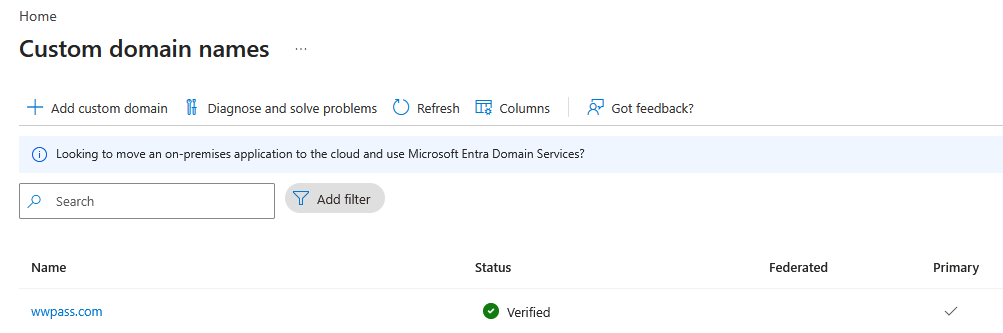
To verify the domain please follow the Microsoft Domain Verification Steps found here.
Azure Command Line
The Azure Command Line is required for this guide.
You must have elevated permissions to use the Azure Command Line inside of portal.azure.com
- Click the Terminal Icon at the top to open the Azure Command Line.

- Install Microsoft Graph for this Configuration.
PS /home/user> Install-Module Microsoft.Graph -Force -AllowClobber
- Connect required Scopes into this session.
PS /home/user> Connect-MgGraph -Scopes `
    "Domain.ReadWrite.All", `
    "Domain-InternalFederation.ReadWrite.All", `
    "User.ReadWrite.All"
- It will ask for verification, usually this can be done by clicking the link and inputting the Access Code that is provided.
- Now check if the Domain is Verified:
PS /home/user> $domainName = "yourdomainhere.com"

PS /home/user> Get-MgDomain -DomainId $domainName | Format-List Id,IsVerified,AuthenticationType
If this succeeds you are now all ready to setup SAML for Azure login.
Do not close the Azure Command Line as the rest of this document continues to use it.
For Internal Users
If you would like to allow internal users of your Azure Entra ID Tenant to use WWPass SAML IdP,
then follow the steps below.
Otherwise, For External Users of the Tenant please scroll down or click the link to view those steps.
Step 1: Manage Config
- Log in to the WWPass Management Portal
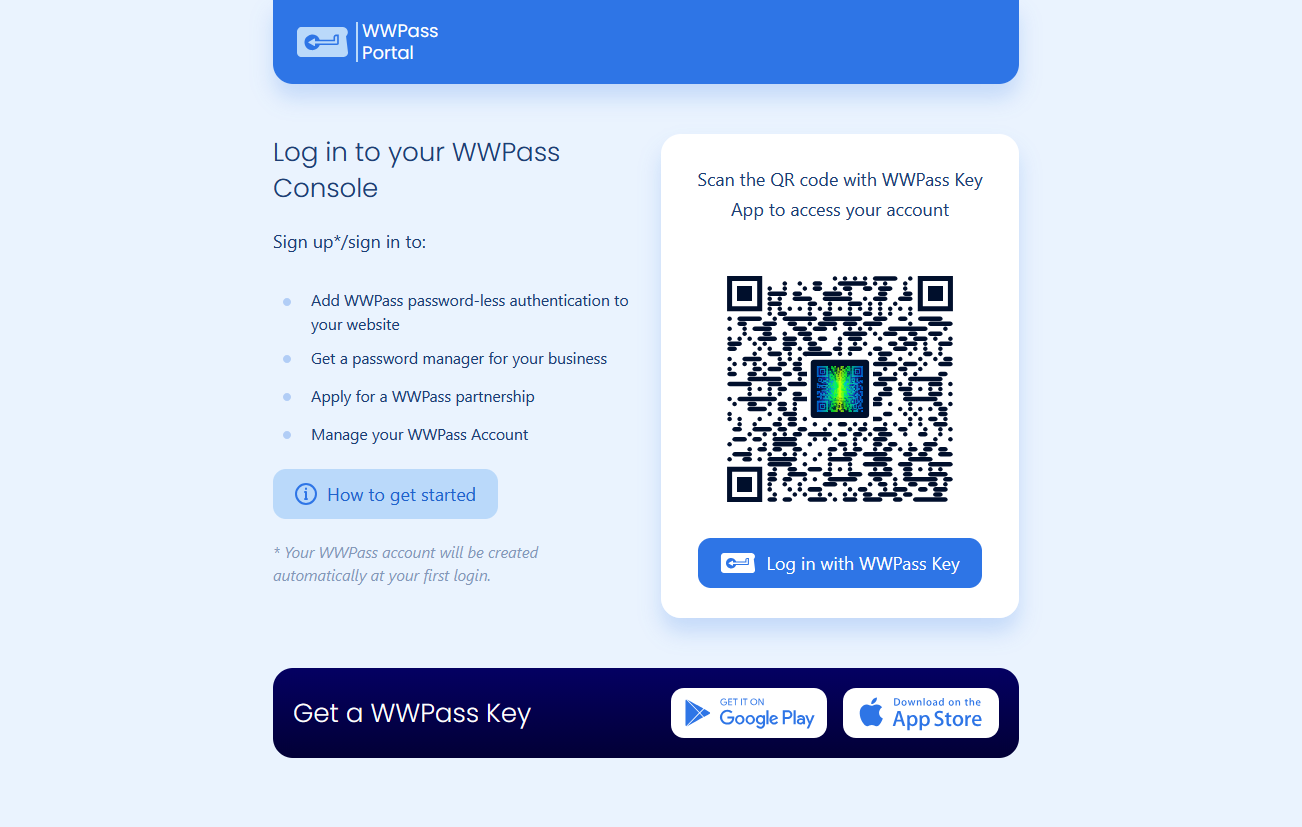
- Create an account if you do not have one, follow the steps and accept the terms.
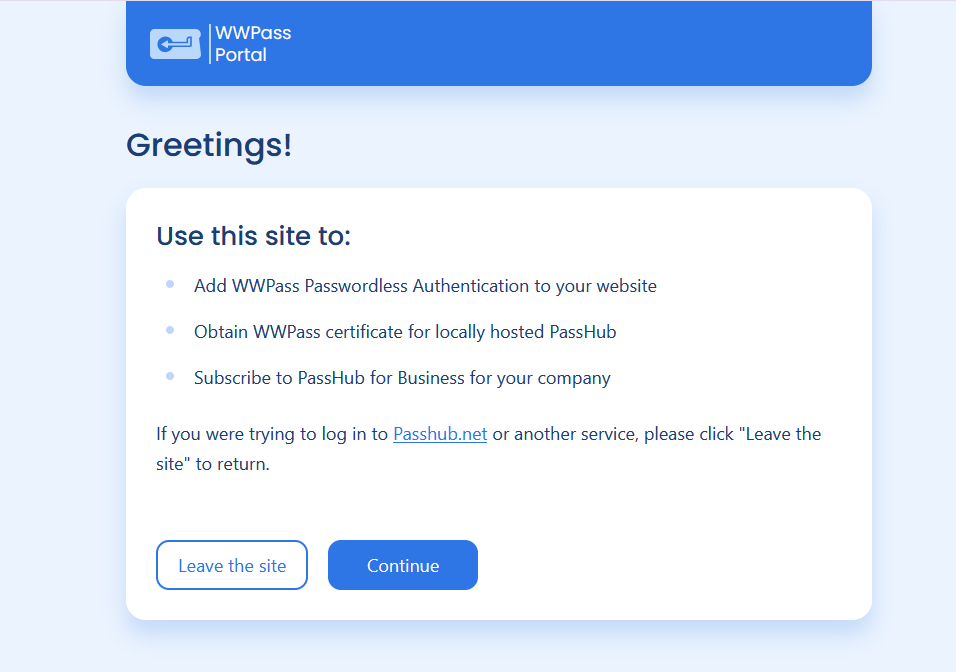
- Click "Add new Application" and give it a name
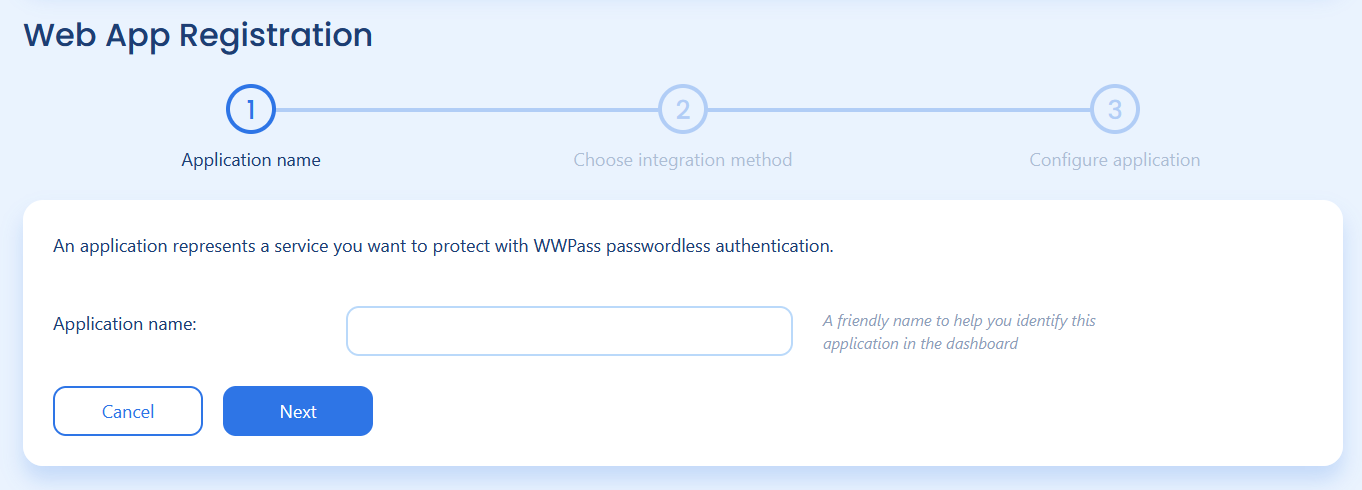
- Choose "SAML 2.0" and hit continue
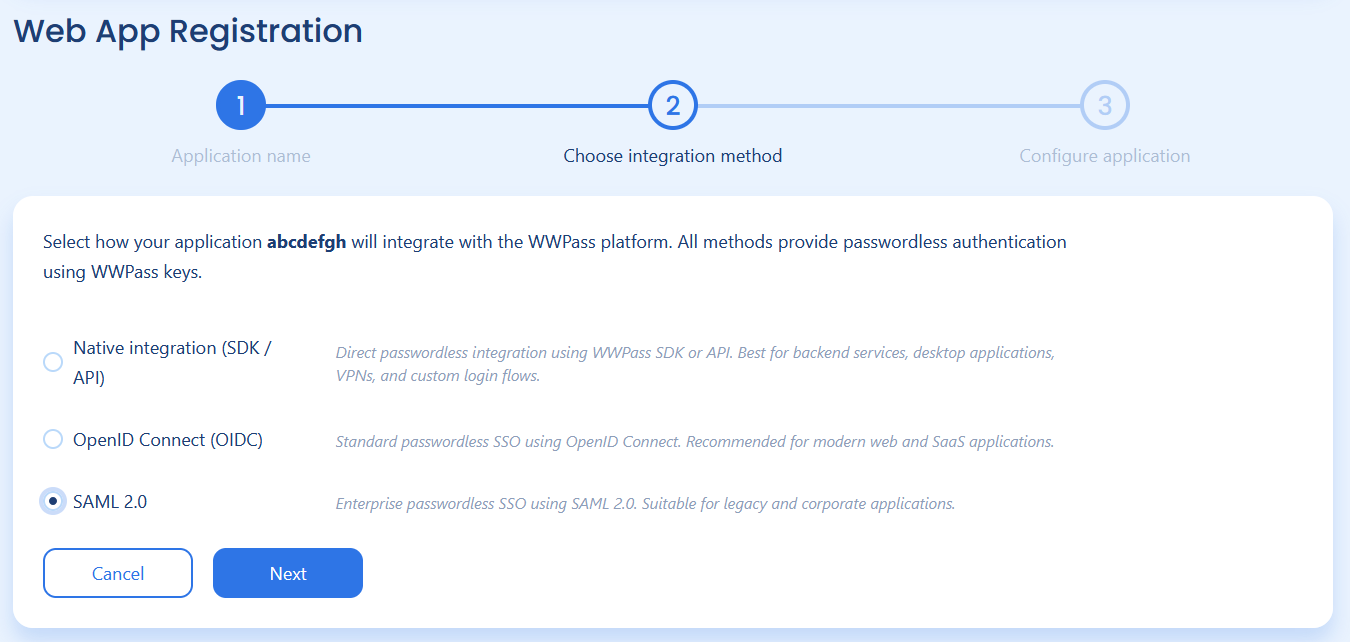
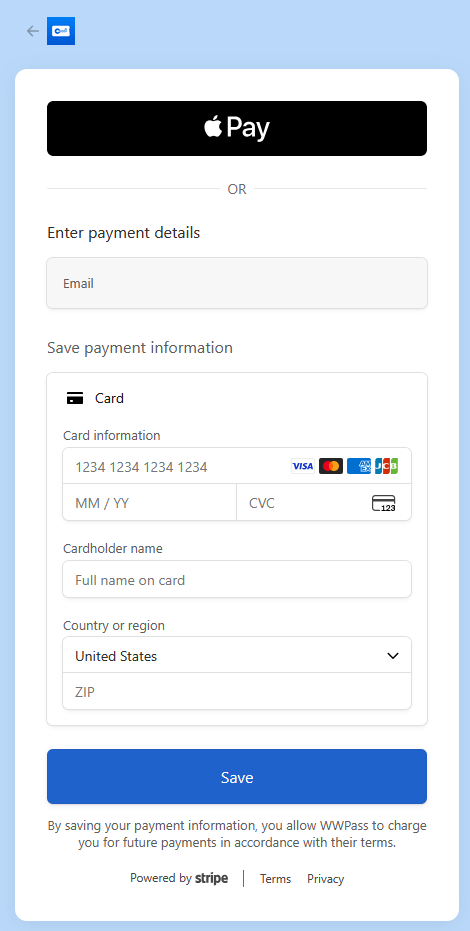
- Provide Card details into Stripe
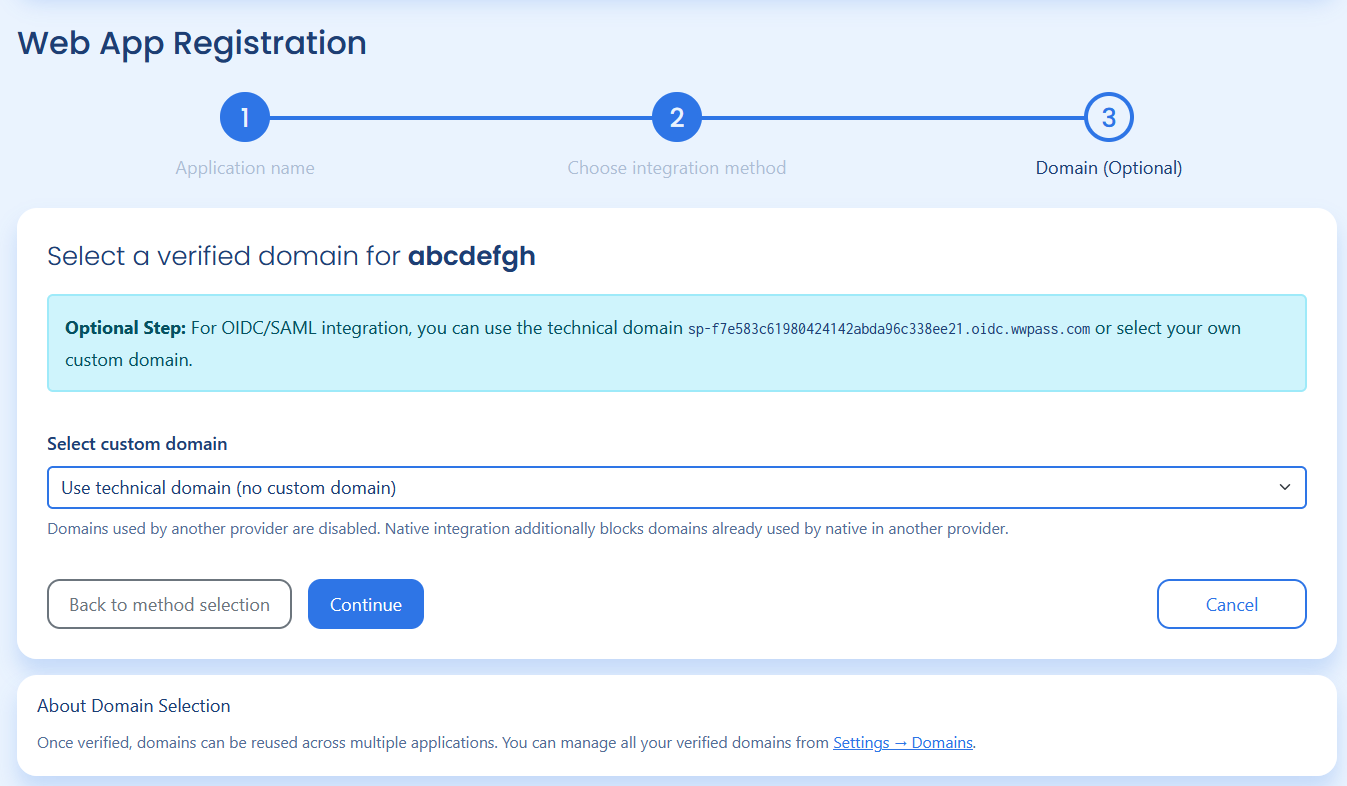
- Continue without using a domain. If you would like you can add your custom domain but it requires DNS TXT verification.
- Choose "Microsoft Entra worforce federation". This way the correct variables are assigned to the SAML application for Microsoft Internal Users.
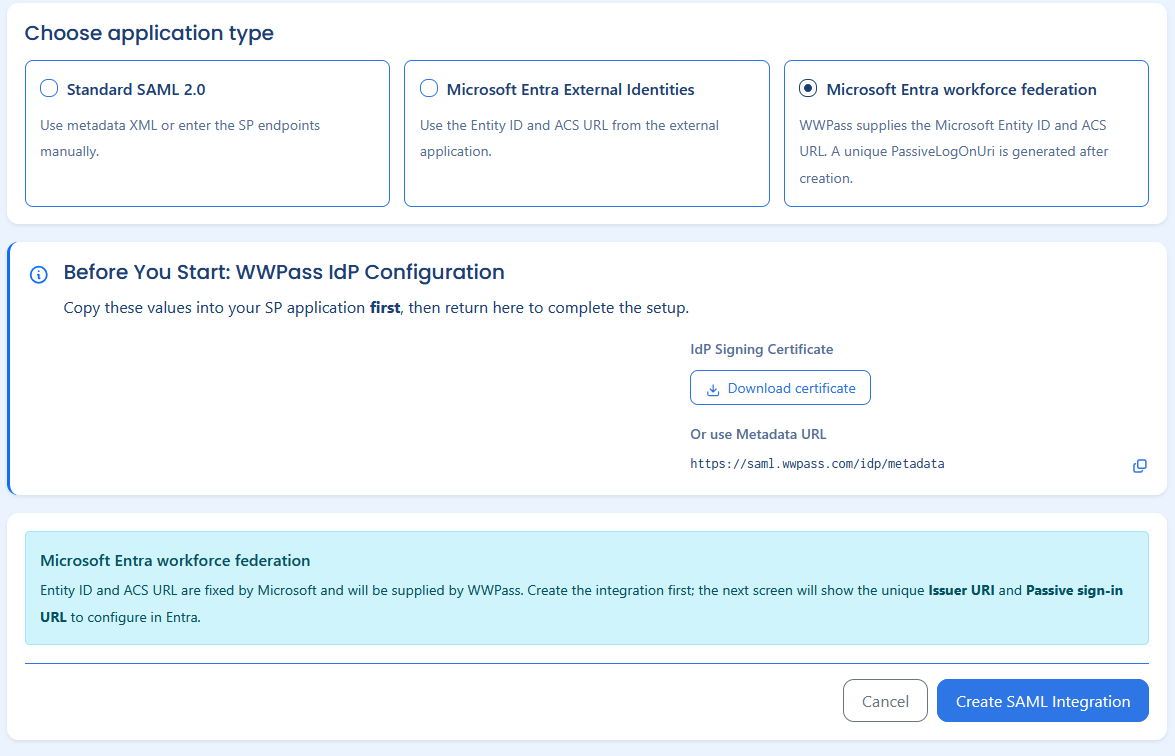
- Save the Issuer URI and Passive sign-in URI to be used later in Azure config.
Step 2: Prep Certificate
Obtain the required SAML Certificate from the WWPass IdP metadata link:
$metadataUrl = "https://saml.wwpass.com/idp/metadata"
$metadataXml = Invoke-WebRequest -Uri $metadataUrl -UseBasicParsing
[xml]$xmlDoc = $metadataXml.Content

$namespaces = New-Object System.Xml.XmlNamespaceManager($xmlDoc.NameTable)
$namespaces.AddNamespace("md", "urn:oasis:names:tc:SAML:2.0:metadata")
$namespaces.AddNamespace("ds", "http://www.w3.org/2000/09/xmldsig#")

$rawCertificate = $xmlDoc.SelectSingleNode(
    "//md:IDPSSODescriptor/md:KeyDescriptor[@use='signing']//ds:X509Certificate",
    $namespaces
).InnerText

$cleanCertificate = $rawCertificate.Replace("`n", "").Replace("`r", "").Replace(" ", "")
Step 3: Federate Domain
Now we must convert the Domain you verified at the beginning to Federated to allow Third Party Authentication Methods, which in this case is SAML.
Use the saved values from Part 7 of Step 1: Manage Config of the "issuerUri" and the "passiveSignInUri" inside the script below.
$federationSettings = @{
    "@odata.type" = "#microsoft.graph.internalDomainFederation"
    "displayName" = "WWPass SAML Authentication"
    "issuerUri" = "https://saml.wwpass.com/idp/microsoft/YOUR-ISSUER-URI-HERE-FROM-MANAGE"
    "passiveSignInUri" = "https://saml.wwpass.com/saml/sso/microsoft/YOUR-PASSIVE-SIGN-IN-URI-HERE-FROM-MANAGE"
    "activeSignInUri" = "https://saml.wwpass.com/saml/sso"
    "signOutUri" = "https://saml.wwpass.com/saml/slo"
    "signingCertificate" = $cleanCertificate
    "preferredAuthenticationProtocol" = "saml"
    "federatedIdpMfaBehavior" = "enforceMfaByFederatedIdp"
}

New-MgDomainFederationConfiguration `
    -DomainId $domainName `
    -BodyParameter $federationSettings
Step 4: Verify The Domain was Federated
Now similarly to how we verified the Domain was verified, now we must verify the Federation suceeded
Get-MgDomainFederationConfiguration `
    -DomainId $domainName |
Format-List *

Get-MgDomain -DomainId $domainName |
Format-List Id,IsVerified,AuthenticationType
Step 5: Option A, B, C
There are 3 options for converting users to use WWPass SAML for Authentication, these all differ based on personal preference and if it's for a new user or existing user.
Option A is for existing users, and options B and C are for new users.
All options have the same end result, only depends if it's an existing or new user.
Option A: Convert Existing users to SAML
You must add an OnPremisesImmutableID to the users account, this ID is their accounts email, but is required to force Microsoft to Lookup and send to this tenant's SAML configuration.
$targetEmail = "j.doe@company.com"

$user = Get-MgUser -UserId $targetEmail

Update-MgUser `
    -UserId $user.Id `
    -OnPremisesImmutableId $targetEmail
Option B: Create a new user using CMD Line
Here we will create a user directly inside the Federated Domain as this cannot be done through the GUI.
As seen with the error below:

This happens because Azure expects a value that cannot be provided using the GUI, we can instead use the Azure CLI as follows:
$targetEmail = "j.doe@company.com"

$newUser = New-MgUser `
    -DisplayName "John Doe" `
    -GivenName "John" `
    -Surname "Doe" `
    -UserPrincipalName $targetEmail `
    -MailNickname "johndoe" `
    -AccountEnabled $true `
    -OnPremisesImmutableId $targetEmail `
    -PasswordProfile @{
        ForceChangePasswordNextSignIn = $false
        Password = "<TEMPORARY_PASSWORD>"
    }
Option C: Create a new user under .onmicrosoft.com, then convert to Federated Domain
This option is not suggested as option B is simpler and easier but it still exists if you would like to use this instead or if the other option creates some issues.
The "j.doe@company.onmicrosoft.com" domain by default is allowed and automatically enabled inside Azure.
In this case we will temporarily use it to hold the newly created user, then transfer the user to the federated domain.
If your company disabled the ".onmicrosoft.com" domain for security purposes then please refer back to Option B.
$givenName   = "John"
$surname     = "Doe"
$displayName = "John Doe"
$targetEmail = "j.doe@company.com"
$tempUPN     = "j.doe@company.onmicrosoft.com"

$newUser = New-MgUser `
    -DisplayName $displayName `
    -GivenName $givenName `
    -Surname $surname `
    -UserPrincipalName $tempUPN `
    -MailNickname "johndoe" `
    -AccountEnabled $true `
    -PasswordProfile @{
        ForceChangePasswordNextSignIn = $false
        Password = "<TEMPORARY_PASSWORD_HERE>"
    }

Update-MgUser `
    -UserId $newUser.Id `
    -OnPremisesImmutableId $targetEmail

Update-MgUser `
    -UserId $newUser.Id `
    -UserPrincipalName $targetEmail
Step 6: Test
The easiest method to test is to go to portal.azure.com and type in your account.
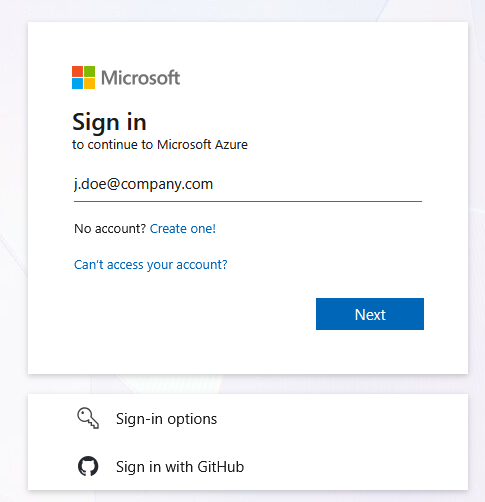
Then it should redirect to the WWPass SAML page, Scan the QR code using your phone and create an account.
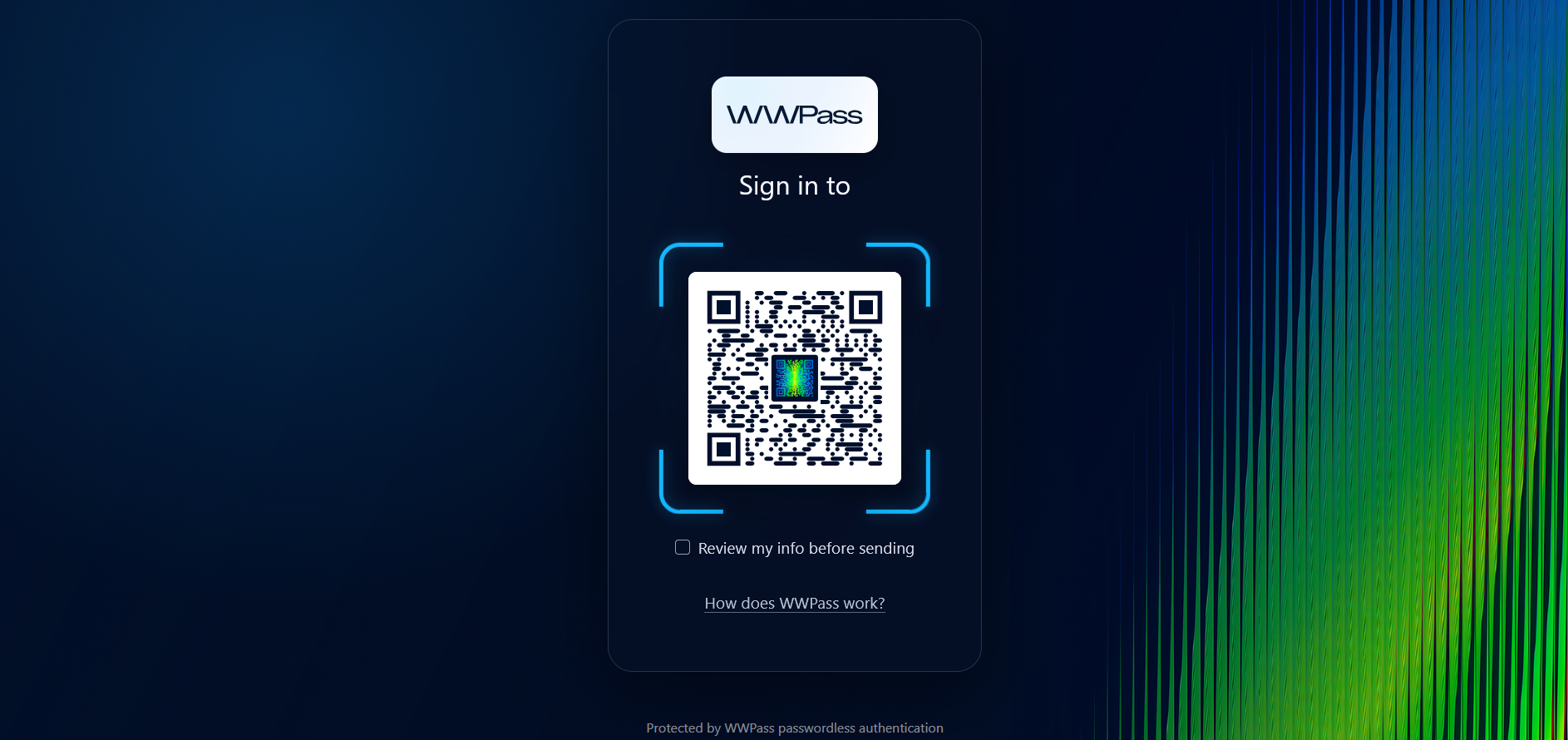
Note: is that Azure is known to have bugs where it might take a day for the configuration to take effect inside your Azure instance so it may redirect to password sometimes.